No upload - private in-browser processing
The video stays on your device while frames are decoded, rendered, and packaged for download inside your own browser tab.
Turn a video into still images without uploading it. Capture one exact moment or create a numbered image sequence, preview every frame, and download only the images you need.
Drag and drop a file here, or choose one from your device.
Browser-readable MP4, WebM, OGV, MOV, MKV, and AVI · no server uploadConvert one frame or a complete sample set with clear controls, local processing, and image files ready for the next step.
The video stays on your device while frames are decoded, rendered, and packaged for download inside your own browser tab.
Capture one exact moment or sample by seconds, FPS, or a fixed frame count with optional start and end times.
Export PNG, JPG, or WebP, resize wide frames, tune quality, and download selected images individually or as one ZIP archive.
Choose the capture method around the job: a precise video screenshot, evenly sampled frames, or a consistent batch ready for another creative or technical workflow.
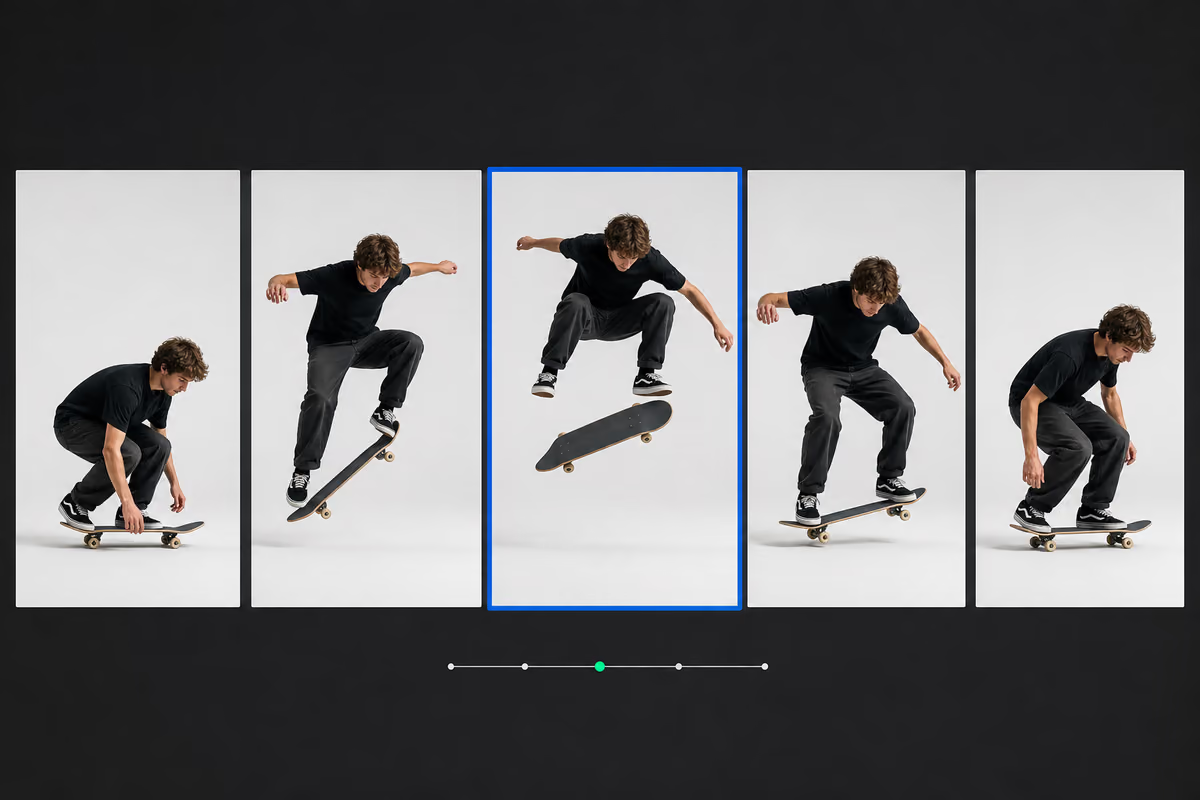
Pause on the moment you need, scrub to its timestamp, then nudge backward or forward in 1/30-second steps. The exported image contains the decoded video frame itself, without playback controls, captions, or browser chrome.
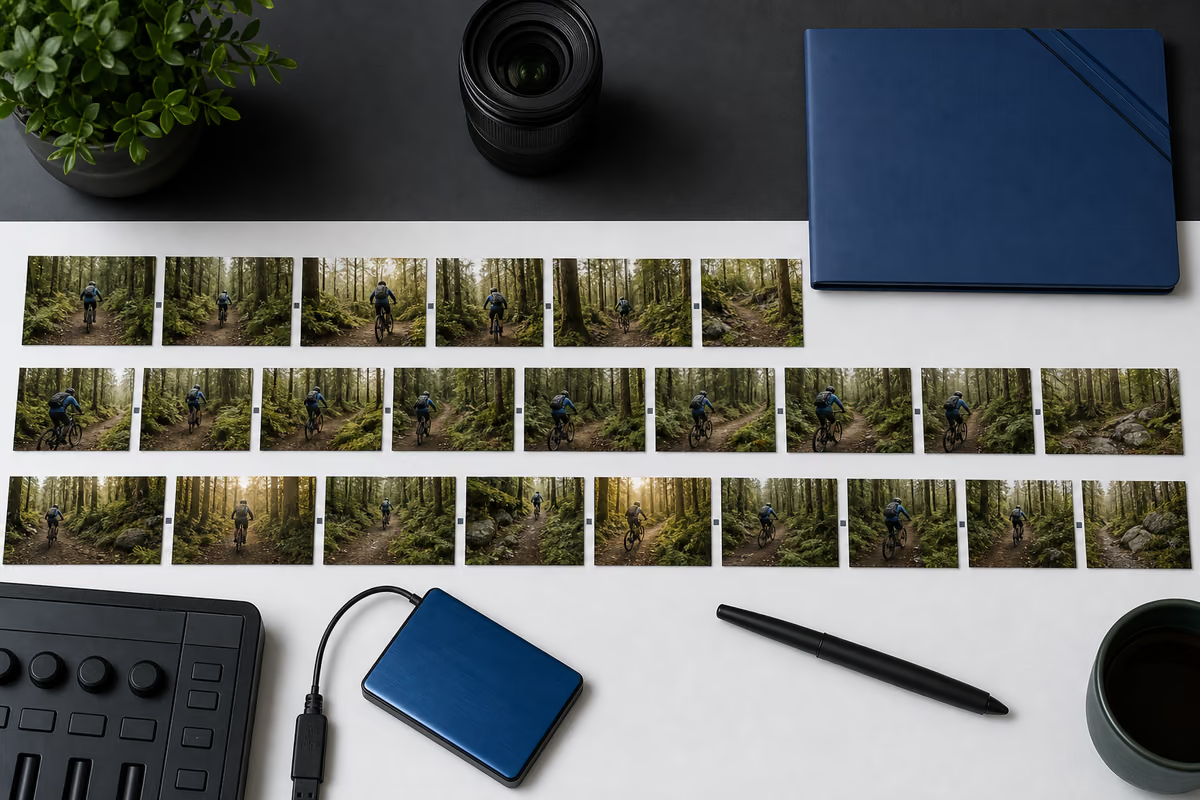
Convert the whole clip or a defined time range into still images. Sample by interval, requested FPS, or total frame count, preview the results in chronological order, and package selected images into one ZIP download.
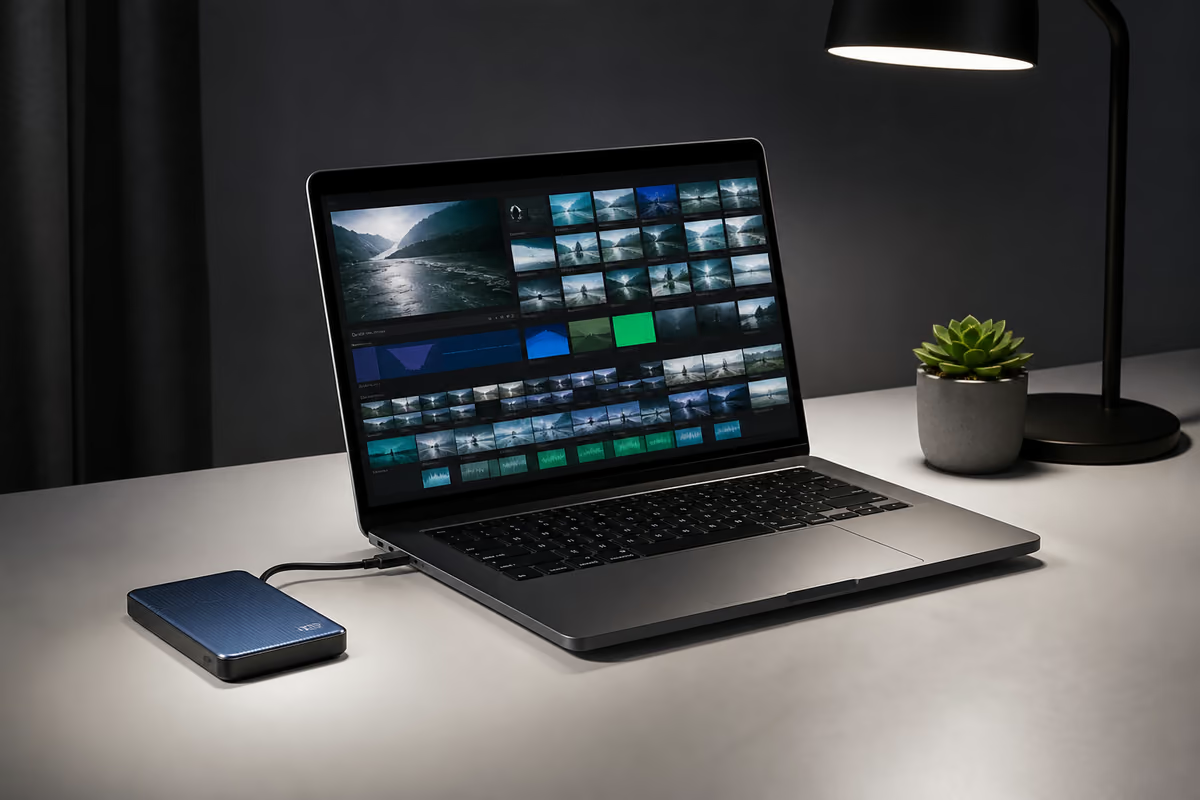
Your selected video is decoded on your device with browser media APIs and a local canvas. There is no video upload to wait for and no server copy of the footage. Practical limits still depend on the codec, resolution, available memory, and number of frames requested.
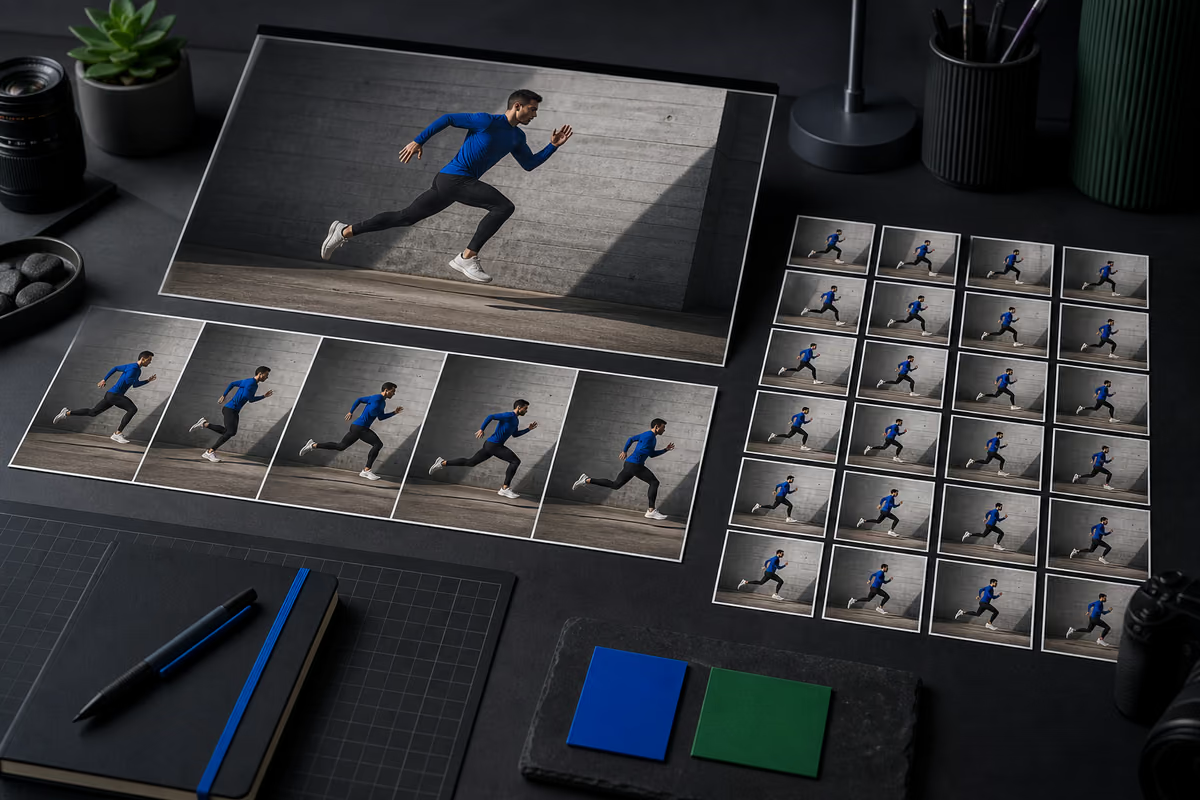
Use a single high-impact frame for a video thumbnail, preserve crisp interface details for a tutorial, or export consistent samples for machine-learning review. Choose the format and dimensions around the next step instead of capturing low-resolution screen grabs.
Capture only the moments your project needs, with settings that work for quick one-off images and repeatable frame sets.
Sample several moments, compare them in one grid, and save the strongest frame for YouTube, social posts, or a cover image.
Save clear poses, presentation slides, tutorial steps, or personal memories as standalone image files from local footage.
Convert a defined section of footage into consistently sized images for machine-learning datasets, documentation, or review.
Pull closely spaced frames to examine product demos, sports movement, animation timing, quality issues, or scene changes.
Choose a local file, decide how often to capture a frame, then preview and download the resulting still images.
Drag in a browser-readable video or select it from your device. Metadata appears instantly without a server upload.
Pick a timestamp, interval, FPS, or frame count, then choose PNG, JPG, or WebP with your preferred quality and width.
Review timestamped thumbnails, select the best images, download them individually, or save everything as one ZIP archive.
The converter captures the same decoded frame in every mode; the output format determines sharpness, compatibility, and file size.
Open the converter| Format | Recommendation | File size | Best for |
|---|---|---|---|
| PNG | Lossless output | Largest | Text, UI, graphics, and archival frames |
| JPG | Adjustable lossy output | Usually small | Photos, thumbnails, and sharing |
| WEBP | Modern lossy output | Often small | Websites, apps, and efficient previews |
Learn how local frame extraction works, which video files browsers can decode, and how to choose the right image output.
Choose a local video, select single frame, interval, FPS, or frame-count mode, set your image format, and press Extract images. Results appear as a downloadable thumbnail grid.
No. videotoimg.com reads the selected file with browser media APIs and draws frames to a local canvas. Your video is not sent to our servers.
Choose PNG for lossless text, UI, and graphics; JPG for smaller photographic images; or WebP for a modern balance of quality and file size.
The converter works with video formats and codecs your browser can decode, commonly MP4, WebM, OGV, and many MOV files. Codec support varies by browser and operating system.
Yes. After extraction, select the frames you want and download them together as a ZIP file. You can also download any frame individually.
No. Images are rendered from your video directly in the browser with no watermark, branding, or account requirement.